Get in touch
I'm always excited to take on new projects and collaborate with innovative minds.
Phone
Email
support@musaiblone.com
Address
Tujjar Sharif, Sopore, Baramulla District, Jammu and Kashmir, India – [193201]
I'm always excited to take on new projects and collaborate with innovative minds.
support@musaiblone.com
Tujjar Sharif, Sopore, Baramulla District, Jammu and Kashmir, India – [193201]
Is your WordPress site hacked or infected? This complete guide explains how to remove malware manually or with plugins, restore security, and protect your site
WordPress is the basis for more than 40% of all websites — a sign of its versatility and simplicity. However, its large user base also makes it a great target for hackers and cybercriminals. Even one small malware infection could put the entire site at risk, leak confidential information, lower your rank in search engines, or even get your website banned by Google.
Your WordPress site might be contaminated with malware if you detect bizarre redirects, annoying pop-ups or a quick drop in performance. But there is good news: cleaning is possible — both safe and thorough.
This guide will teach you how to spot, get rid of, and stop malware infections through both manual and automatic methods. These steps will enable you to come back to the full control of the site and to secure the WordPress site for a long time, whether you are a novice or a proficient site owner.
Malware is basically any software built to mess with your site , steal data , or sneak in where it doesn’t belong . If you’re running WordPress, you’re a target— malware likes to hide in all sorts of places : It slips into your theme or plugin files as injected code. Sometimes, you’ll find fake pages pretending to be legit, just to trick visitors into handing over info . Hackers love backdoors, too—these let them waltz right back in even after you think you’ve shut them out . Then there’s SEO spam , like hidden links or bogus ads shoved onto your pages. And, of course, those sneaky redirect scripts that send your visitors off to shady sites. Malware doesn ’t just slow things down. It can wreck your reputation, leak sensitive info , and even get your site flagged as dangerous by Google . Not a good look.
First things first — don’t jump straight into cleanup. You need to know for sure your site’s infected. Here’s what to watch for and how to check:
Weird spikes in traffic or sudden redirects to sketchy sites
Trouble logging in as admin, or random new users showing up
Strange files or unexpected changes in your code
Warnings in Google Search Console
Antivirus or browsers flagging your site as dangerous
Sucuri SiteCheck — scans your site’s public files and checks if you’re blacklisted.
Wordfence Security Plugin — digs deep from inside your WordPress dashboard.
MalCare Security Plugin — finds and removes malware automatically.
VirusTotal — checks URLs and files for anything malicious.
Manual cleanup gives you full control, but it’s not for beginners. Take your time — and back up your website before you touch anything.
Block visitors while you clean up. Plugins like WP Maintenance Mode or SeedProd do the trick.
Don’t risk losing your site. Download a backup of all your files and database using tools like:
UpdraftPlus
Jetpack Backup
Good old FTP (via cPanel or FileZilla)
Keep your backup somewhere safe, just in case.
Check your hosting logs and run a malware scan. Look for dodgy PHP or JavaScript code in these spots:
/wp-content/themes/
/wp-content/plugins/
wp-config.php
.htaccess
index.php
Watch for code like base64_decode, eval, gzinflate, or str_rot13 . If these pop up where they shouldn’t, dig deeper.
Open infected files and cut out any suspicious code by hand. Compare them to fresh WordPress core files from wordpress.org to spot differences.
If a plugin or theme looks compromised, just delete it and reinstall a clean version.
Hop into phpMyAdmin or use a plugin like WP-Optimize. Check for:
Unknown admin users in wp_users
Weird scripts hiding in wp_posts or wp_options
Delete anything that looks off.
Change passwords for:
Every WordPress user account
FTP accounts
cPanel or your hosting panel
MySQL database
Update your security keys in wp-config.php. You can get new ones here: https://api.wordpress.org/secret-key/1.1/salt/
Download the latest WordPress from wordpress.org. Replace your /wp-admin/ and /wp-includes/ folders with fresh copies.
Folders: set to 755
Files: set to 644
wp-config.php: set to 600 for extra safety
And that’s it. Take your time, double-check everything, and your site will be clean and secure again.
If digging through files by hand sounds like a headache, don’t worry—there are solid plugins that do most of the heavy lifting for you.
What it does:
Scans deep for malware
Cleans up your server
Fixes blacklist issues
Watches over your site 24/7
How to use it:
Install Sucuri Security from your WordPress dashboard. Kick off a full scan. If Sucuri finds anything, follow the steps to quarantine or delete the bad files. Turn on the Web Application Firewall (WAF) for constant protection.
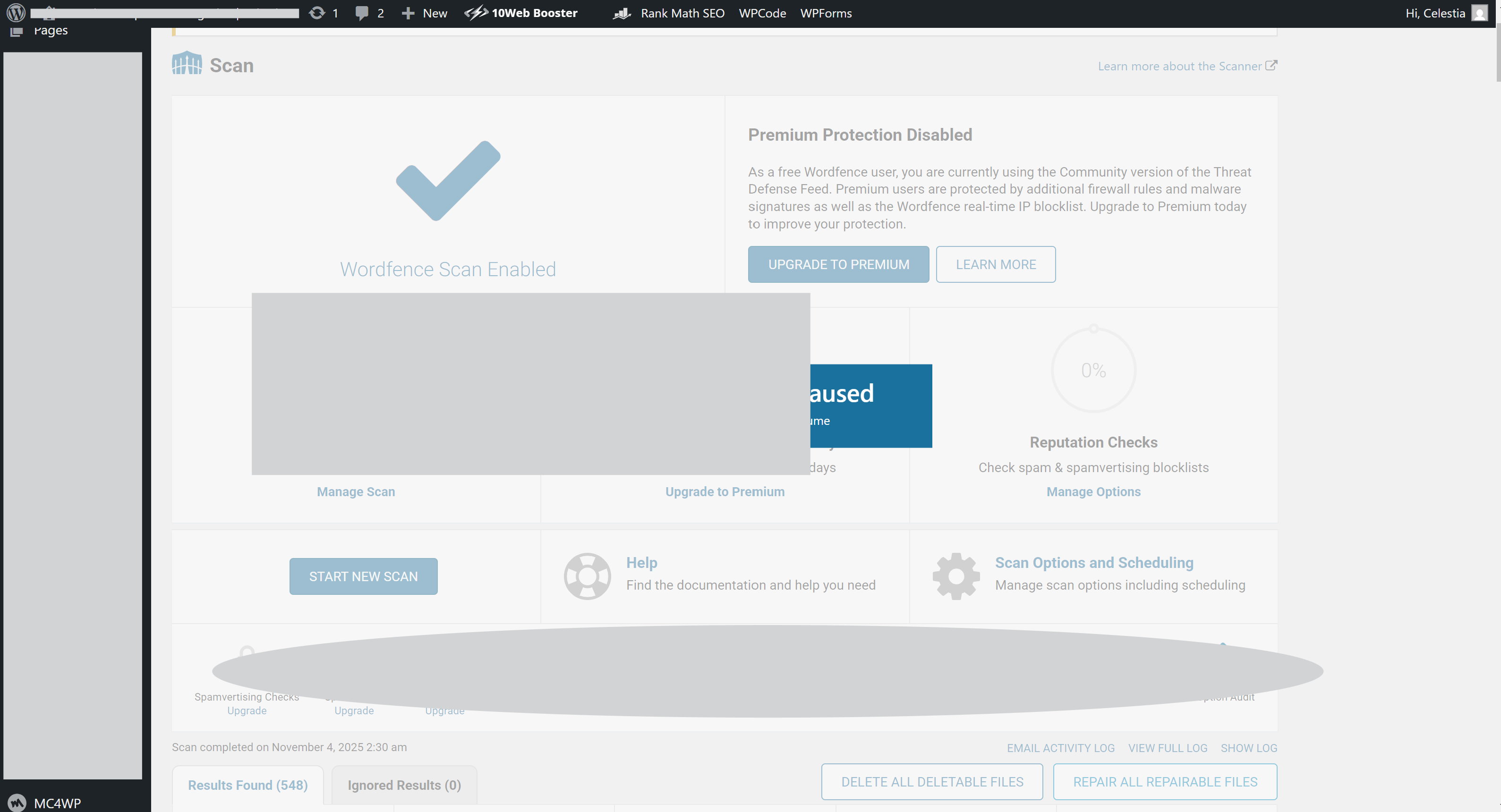
What it does:
Runs an endpoint firewall
Scans for malware
Adds login security (2FA, reCAPTCHA)
Repairs files
How to use it:
Install and activate Wordfence. Go to the Scan section and run a full scan. Check any files Wordfence flags—repair or delete as needed. Set up auto-updates for critical stuff so you don’t fall behind.
What it does:
Removes malware with one click
Scans daily on autopilot
Protects your login
Comes with a firewall
How to use it:
Add the MalCare plugin and link your site to the MalCare dashboard. Hit “Auto Clean” to wipe out malware right away. Turn on continuous protection to keep threats at bay.
Best for prevention and hardening (not full malware removal)
iThemes Security focuses on locking things down—think file change alerts, brute-force protection, and database backups. It’s about stopping attacks before they start.
After Malware Removal: Next Steps
Kicking out malware is just part one. Now it’s all about rebuilding trust and tightening your defenses.
Double-check by running another scan with Sucuri, Wordfence, or even VirusTotal. Make sure your site’s really clean.
If Google or antivirus services flagged your site, go to Google Search Console → Security Issues. Once you’re sure everything’s fixed, hit Request a Review.
Don’t leave any doors open. Update WordPress itself, all your themes, and every plugin you use.
Limit login attempts
Disable file editing in wp-config.php (add define('DISALLOW_FILE_EDIT', true);)
Set up a Web Application Firewall (WAF)
Use two-factor authentication (2FA)
Set up automatic backups
Set up ongoing scans and alerts. Use Sucuri, Wordfence, tools from your hosting provider, and Google Search Console email notifications.
A little prevention goes a long way. Here’s how to keep trouble out for good:
Stick to trusted plugins and themes. Only install from the official WordPress directory or developers you trust.
Stay updated. Don’t let your WordPress core, themes, or plugins get out of date—old software is an open invitation for hackers.
Use secure hosting. Providers like Kinsta or SiteGround have built-in security and malware protection.
Enable SSL. Always use HTTPS to protect your data and your visitors.
Automate backups and store them offsite—think Google Drive, Dropbox, or cloud storage.
Limit admin access. Only give people the access they actually need.
Run security scans every week to catch issues early.
Dealing with malware is stressful, but it doesn’t have to be the end of your WordPress story. Act fast, follow the right steps, and focus on security going forward. Whether you like the hands-on approach or want plugins to take care of things, the main thing is to stay alert—keep everything updated, monitored, and backed up.
A secure site isn’t just safer. It reassures your visitors, helps your SEO, and makes your brand look stronger than ever.
| Task | Manual | Automatic |
|---|---|---|
| Backup your site | ✅ | ✅ |
| Scan for malware | ✅ | ✅ |
| Remove malicious code | ✅ | ✅ |
| Clean database | ✅ | ⚙️ (partial) |
| Reset passwords | ✅ | ✅ |
| Reinstall core files | ✅ | ⚙️ (optional) |
| Add firewall | ⚙️ | ✅ |
| Schedule future scans | ⚙️ | ✅ |
Watch out for weird redirects, your site loading slower than usual , strange new users popping up , or Google Search Console throwing up security warnings .
Absolutely. You can do it yourself—clean out suspicious files, reset your passwords, and upload fresh copies of the core WordPress files.
At first , maybe a little. But once you clean things up and Google sees your site ’s safe again , your rankings usually bounce back .
Don’t do that . Clean it up using the steps above. Deleting everything is almost never the answer— unless the site’s totally beyond saving, which hardly ever happens .
MalCare, Sucuri, and Wordfence —they’re the big three . They’re fast and do a solid job finding and cleaning up malware . Key Takeaway Keeping your WordPress site secure isn’t a one- and-done deal . You’ve got to stay on top of updates, backups, and regular scans. That’s how you keep the bad guys out.
#WordPressSecurity#RemoveMalware#WebsiteSecurity#WordPressTips#MalwareRemoval#WebsiteProtection#WordPressH#CyberSecurity#CleanWordPress#FixHackedWebsite#WebsiteMaintenance#WordPressSupport#WebSecurity
Your email address will not be published. Required fields are marked *